
Batch Import Files
Bitkinex
Description
Bitkinex is recommended as priority
Advantages: Supports resumable upload, displays upload progress in real time, can view upload logs
Prerequisite: If the historical data directory is not deep and the file names are not long, you can use this method.
Because it is webdav synchronization, it will be subject to the Windows filename limit of 255 characters, resulting in synchronization failure.
If there are too many failures, the tool may freeze. At this time, you can close and reopen the tool and try the synchronization operation multiple times, but files with names exceeding the limit still cannot be synchronized.
Download BitKinex, version 3.2.3 is recommended
Double-click to install BitKinex
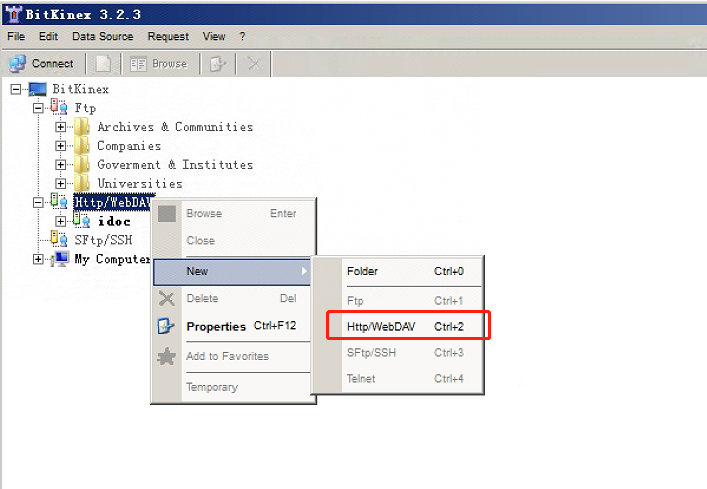
Open BitKinex, right-click Http/WebDAV > New > Http//WebDAV, give the connection a name, then right-click Properties
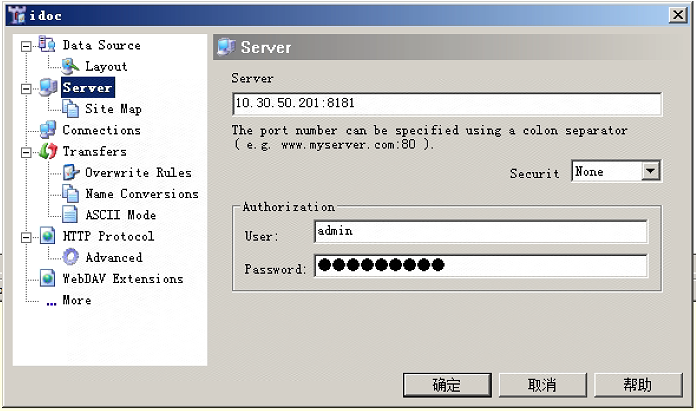
- Enter the server IP + port, username, and password in the pop-up box, then click OK
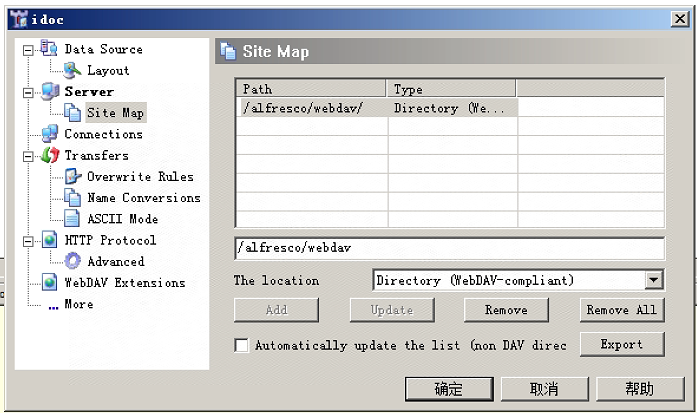
- Click Site Map on the left, click the first data on the right, change the data to: /alfresco/webdav/, then click Update to save
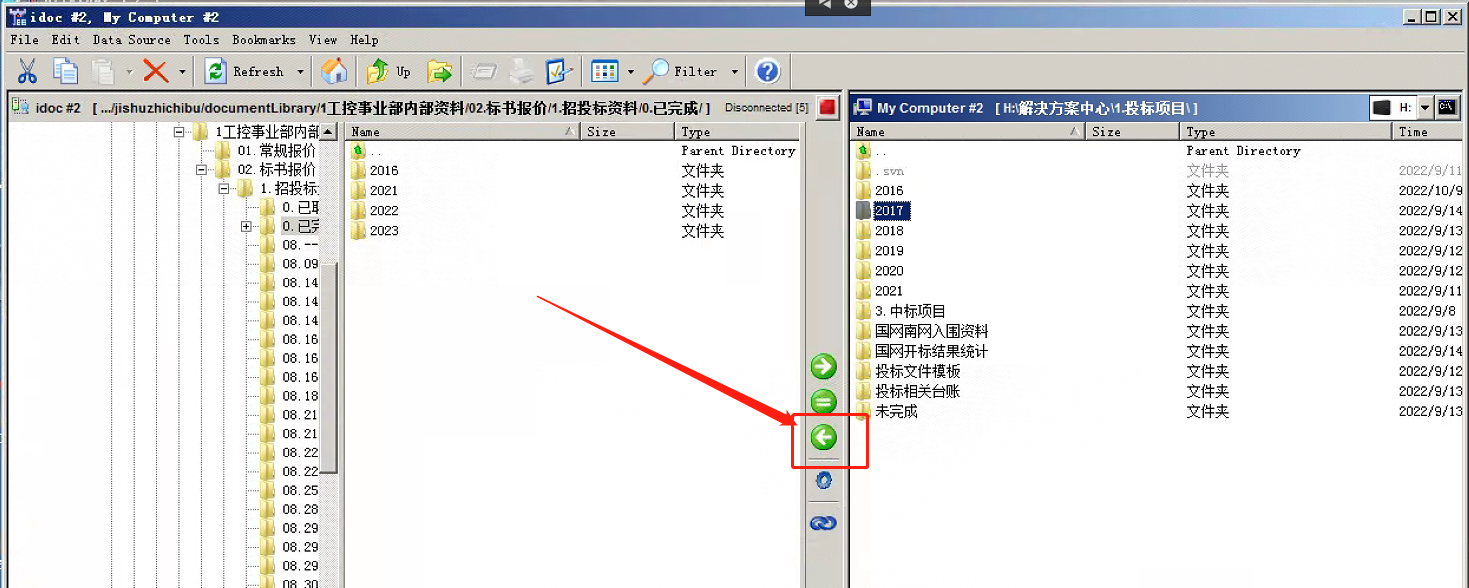
- Double-click the name of the new connection to open the data transfer page. The left side displays server data, and the right side displays local data. On the left, click Sites > {site ID} > documentLibrary > ... in sequence, select the folder to be synchronized on the right, click the green left arrow button in the middle to start uploading data
alfresco-bulk-import addon
Description
Use synchronization plugin for data import
Prerequisite: This plugin needs to be installed on the system first
Advantages: Can handle large data volumes and long file names
Disadvantages: Data needs to be transferred to the server first
Possible Problems
Because data needs to be transferred to the server first, this may lead to inconsistent character encoding issues:
This problem occurs on specific Linux CentOS7 versions (cloud servers have not been found to have this problem yet). Although the character encoding is en_US.UTF-8, Chinese folder names and files uploaded through WinSCP are displayed as garbled characters when using the ls command. The solution is as follows:
First ensure that Windows is version Win10 or above. Win7 does not support modifying character encoding for the time being
Change Windows character encoding to UTF-8: Settings > Time and Language > Date, time, and number format settings > Other date, time, and number format settings > Region > Change date, time, or number format > Administration > Change system region settings > Check "Beta: Use Unicode UTF-8 to provide global language support"
Connect to the server and upload the data to the server directory
Open the alfresco-bulk-import addon page in a browser: http://10.30.50.201:8181/alfresco/s/bulk/import, enter the system administrator username and password to log in. Please note to replace the URL with the actual address
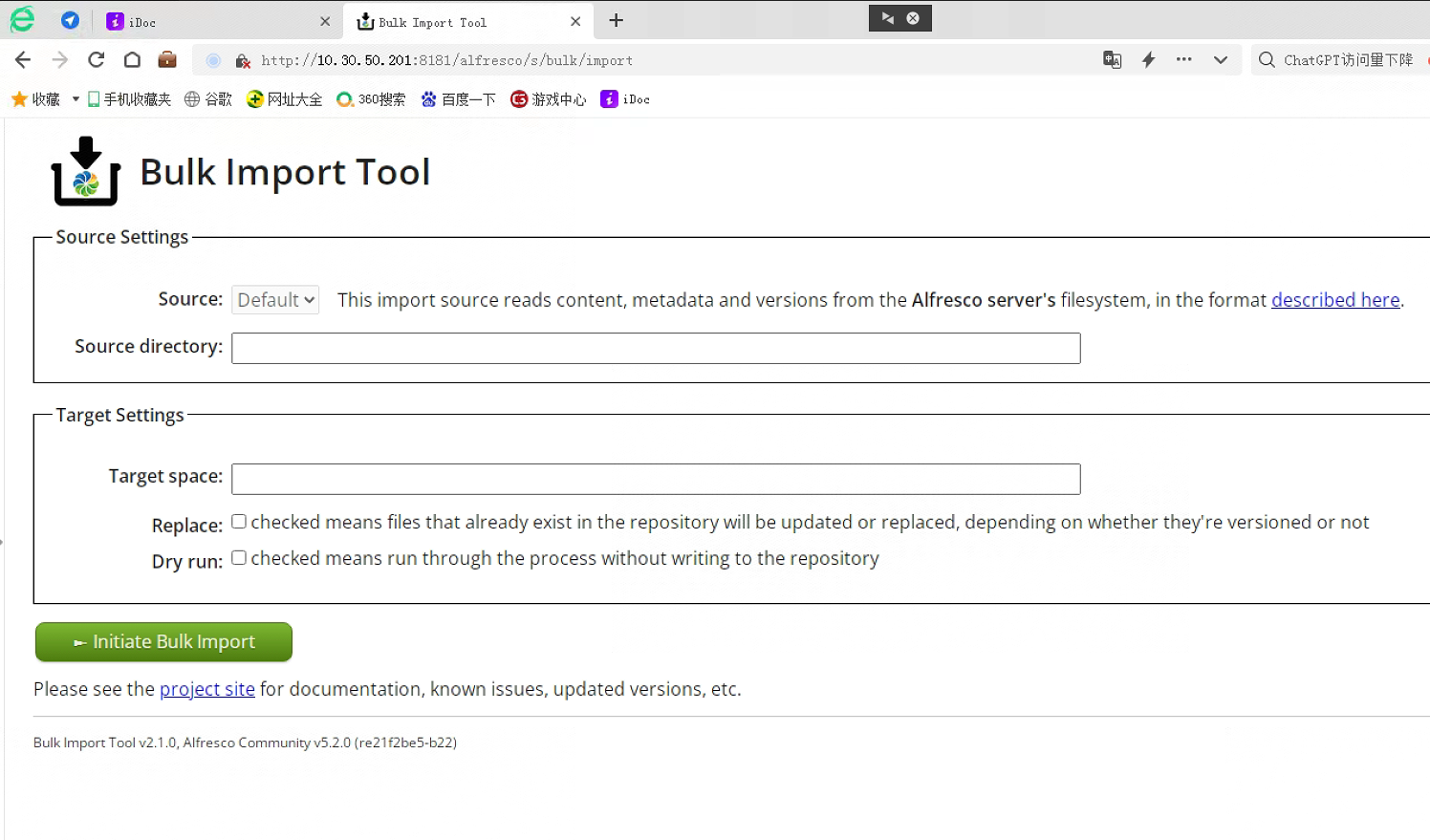
- Import configuration
- Source directory: Data path on the server, for example: /opt/data
- Target space: ID of the target system folder for data import. Viewing method is as follows:
- Browser access: http://10.30.50.201:8181/alfresco/s/admin/admin-nodebrowser, please note to replace the URL with the actual address
- Click Root List button
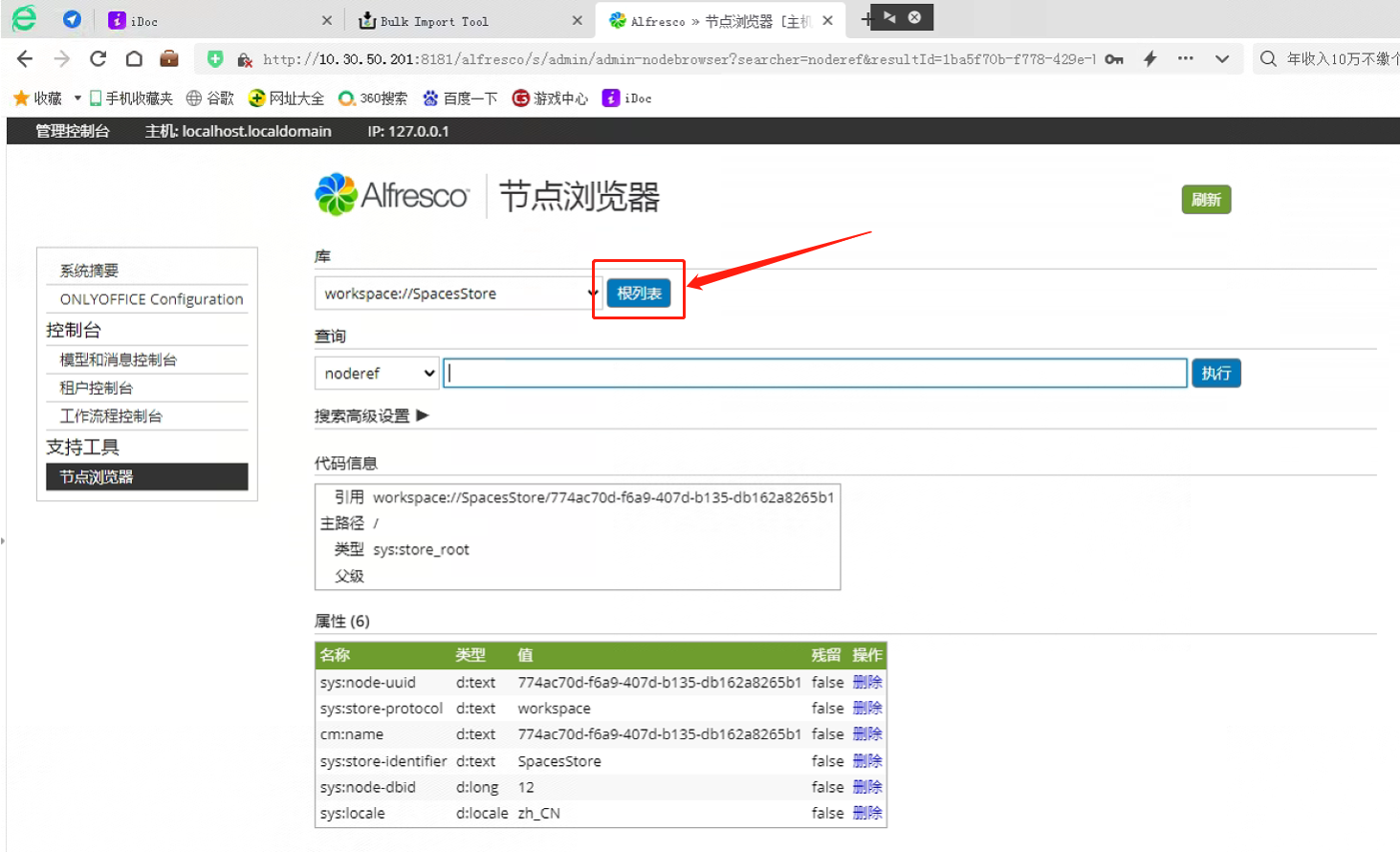
- In the Sub-items below, click app:company_home > st:sites > cm:{site ID} > cm:documentLibrary > ... in sequence to locate the target system folder, and copy its reference ID
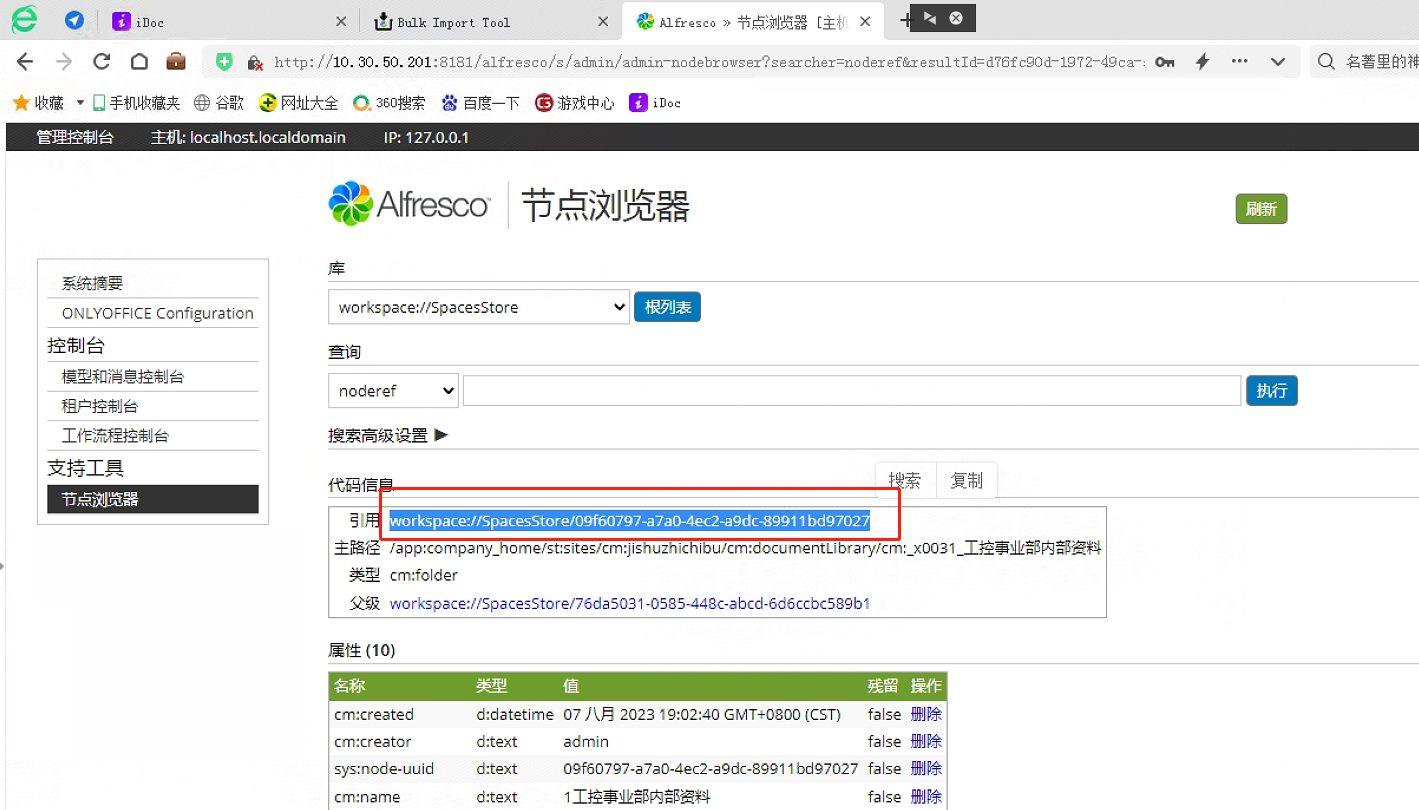
- Fill in the copied reference ID in Target space
- Replace: Whether to override existing files with the same name. If not checked, files already in the system will not be uploaded
- Dry run: After checking, it will only test and will not perform real upload. Please do not check this option
- Click the Initiate Bulk Import button to start importing