
Workflow Process
About Process Engine
The workflow process uses the Activiti engine. Activiti is the leading lightweight, Java-centric open source BPMN engine, supporting various process automation requirements.
For specific knowledge, please refer to: Activiti
Designer Introduction
The process designer is divided into two sections: left and right layout:
- Left: Process design area. In the upper left floating box, there are design tools and process components. You can drag process components to the designer, adjust layout, connections, etc., to construct the basic process structure. After clicking a process component, the properties of that component will be displayed on the right.
- Right: Properties area, divided into process properties and component properties
- Process properties: Display process properties when no component is selected
- Form properties: Display component properties when a component is selected
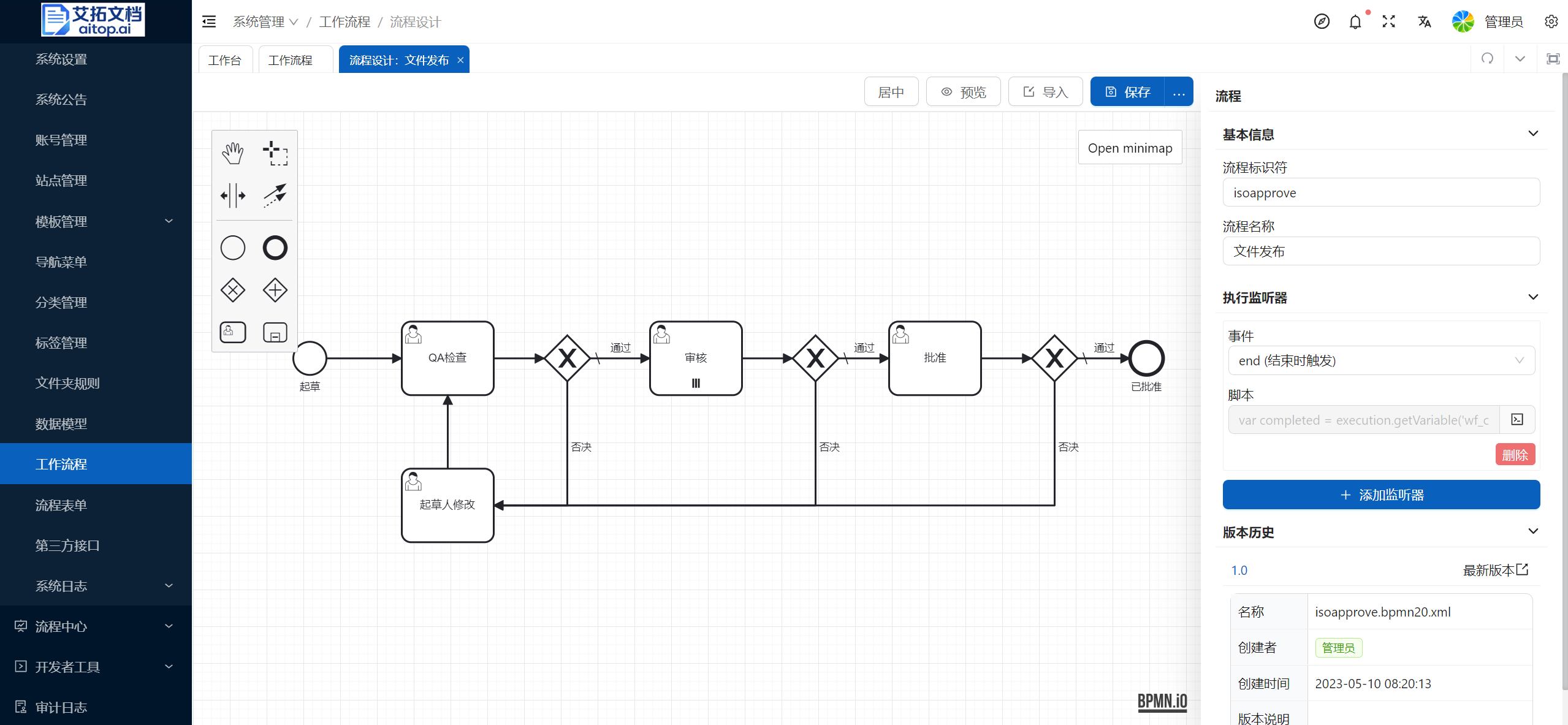
Process Properties
- Process identifier: Also called process ID, must be globally unique. It is recommended to use the English name of the process
- Process name: The display name of the process
- Execution listener: See Listener for details
Component Properties
Component types include the following:
- Start
- End
- Task (User task)
- Sequence flow
- Exclusive gateway
- Parallel gateway
- Sub-process (expanded sub-process)
General Properties
- ID: Component ID, must be globally unique. Generally automatically generated by the system, no need to modify
- Name: Display name of the component. The following are the recommended name naming methods
- User task: Use the task action as the name, for example: Review, Approve, Applicant modification, etc.
- Sequence flow: The connection after the gateway will generate approval buttons based on the name, so it is recommended to use relevant approval operations as the name, for example: Approve, Reject, etc.
- The following component types generally do not need to specify names: connection before gateway, gateway
- Form: The approval form used by the task node. Only the following component types can set forms: Start, Task
Description
A process generally has multiple tasks, and the forms used by each task may be different (the form fields displayed and activated by each task node may be different). The system supports two form setting methods:
- (Recommended) Design only one form for a process, and specify the display and activation status of fields in the field properties' conditional display and conditional activation
- Design multiple forms for a process and specify different forms for different task nodes
It is recommended to use the first method to reduce the workload of later maintenance.
Specific Properties
Task (User Task)
- Task
- Handler user: You can directly specify the user ID in the system, or specify a variable through ${variable name} (for example: ${bpm_assignee}). For specifying variable values:
- Single instance task: Specified in the execution listener
- Multi-instance task: Specified through the multi-instance loop variable property
- Handler user: You can directly specify the user ID in the system, or specify a variable through ${variable name} (for example: ${bpm_assignee}). For specifying variable values:
- Multi-instance
- Type
- Sequential processing: When a task is jointly approved by multiple people, approval is performed in sequence (the latter will receive the todo item only after the former completes the task)
- Parallel processing: When a task is jointly approved by multiple people, approval can be performed simultaneously (receive todo items at the same time)
- None: Single instance task (a task is approved by only one person)
- Collection: Specify variable name. The variable value is an array and is specified in the execution listener
- Loop variable: Loop through the array specified by the variable in the collection, store the value of each traversal in the loop variable, and in the task handler user property, you can directly specify this loop variable
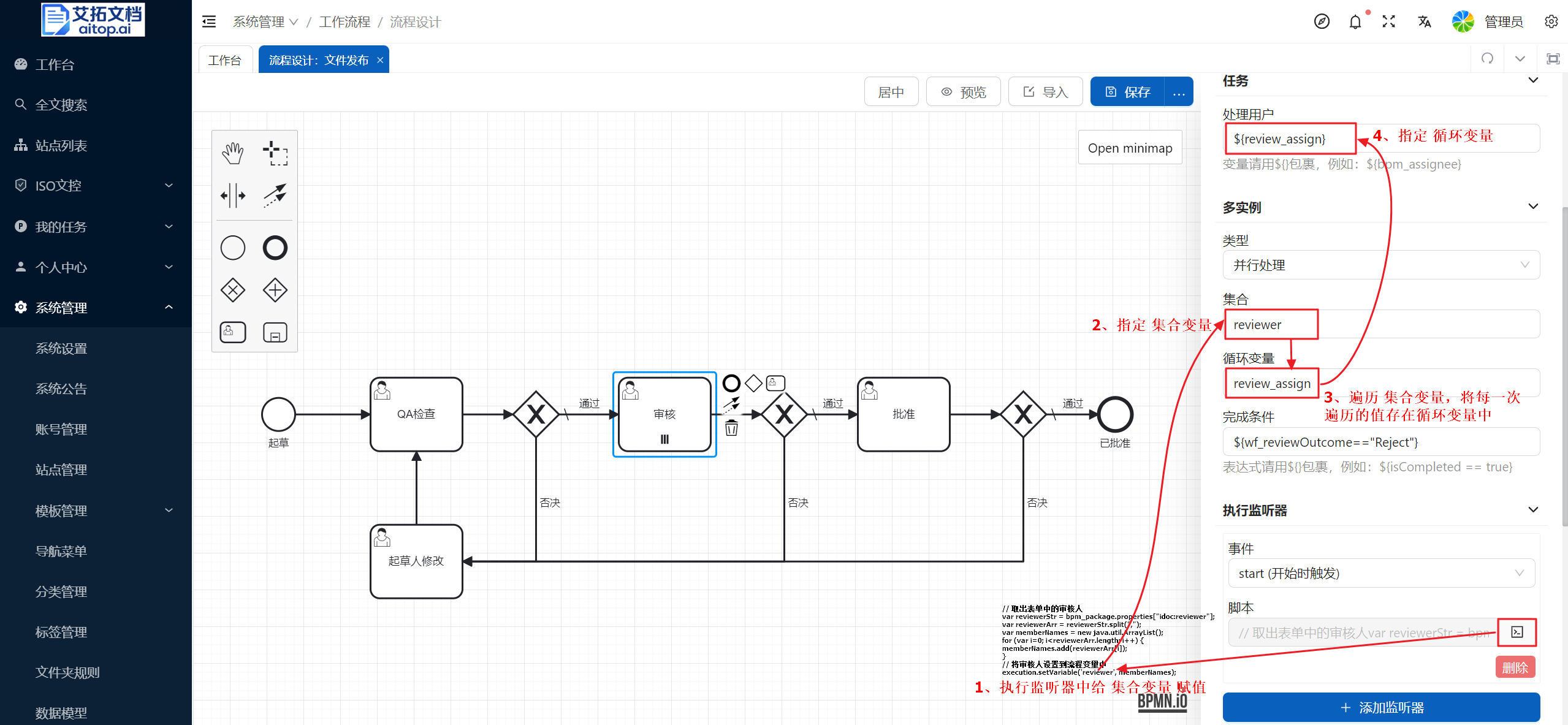
- Completion condition: Under satisfying conditions, the task ends early. Generally a conditional expression, for example: ${wf_reviewOutcome=="Reject"}, where the variable value can be specified in the execution listener or task listener. Common scenarios are as follows:
- No need for everyone to agree. When the agreement ratio reaches a specified value, the task is considered approved
- As long as one person vetoes, others do not need to handle it, and the task will be directly rejected and returned
- Type
Sequence Flow
- Flow type:
- Normal flow path: Generally the connection before the gateway
- Default flow path: It is recommended to specify the approval pass flow path after the gateway as default. The default flow path will be generated as the first button of the approval operation on the form
- Conditional flow path: The flow path that proceeds after meeting specified conditions
- Flow condition expression: Generally a conditional expression, for example: ${wf_reviewOutcome=="Reject"}, where the variable value can be specified in the execution listener or task listener.
Listener
Listeners are divided into:
- Execution listener: Both processes and components can set execution listeners
- Task listener: Only task components can set task listeners
The trigger time points of execution listeners and task listeners are different. The general trigger order is:
- Execution listener start: Generally used for form variable acquisition, specification of task owner variables, etc.
- Task listener create
- Task listener assignment: Generally used to set document access permissions for approvers
- Task listener complete: Generally used to save workflow processing logs
- Execution listener end: Generally used for:
- Process: Used to determine whether to cancel the application. In the case of canceling the application, if necessary, the status of the approval document can be restored
- Start component: Save workflow processing log
- End component: Processing matters for normal process approval completion, such as process status update, document status or property update, etc.
Listener Syntax
Listeners are written in Javascript syntax. For specific syntax, please refer to: Alfresco JavaScript API
In addition to the built-in objects in the Alfresco JavaScript API, listeners in workflows can also use the following root objects:
- bpm_package: Points to the Node of the workflow form. Through this object, you can get form properties, approval documents, etc.
- Form properties: bpm_package.properties["property name"] method, for example: bpm_package.properties["idoc:isono"]
- Approval documents: bpm_package.childAssocs["bpm:packageContains"], for example: var nodes = bpm_package.childAssocs["bpm:packageContains"];
- wfUtil.saveHistory: Save workflow processing log
- Start component:
// Record process history wfUtil.saveHistory(bpm_package, "wfActionStart");- Task component:
- Applicant modification
// Record process history wfUtil.saveHistory(bpm_package, "wfActionResubmit");- Other tasks
// Set approval/reject information to process variables to determine branch direction
var wf_reviewOutcome = task.getVariable('wf_reviewOutcome');
execution.setVariable('wf_reviewOutcome', wf_reviewOutcome);
// Record process history
wfUtil.saveHistory(bpm_package, wf_reviewOutcome, task.getVariable('wf_comment'));
- execution: During the entire process execution, you can get and set process variables through execution. The set process variables can be accessed in listeners at any location
- Set process variable: execution.setVariable(variable name, variable value), for example: execution.setVariable('wf_reviewOutcome', '');
- Get process variable: execution.getVariable(variable name), for example: execution.getVariable('wf_reviewOutcome');
- task: Can only be accessed in task components. You can get approval/reject information through task.getVariable('wf_reviewOutcome')
// Set approval/reject information to process variables to determine branch direction
var wf_reviewOutcome = task.getVariable('wf_reviewOutcome');
execution.setVariable('wf_reviewOutcome', wf_reviewOutcome);
Version Management
Save New Version
Process design supports version management. Click the icon after the Save button on the toolbar to display the Save as New Version button. After clicking, you can save the current configuration as a new version.
Read History Version
Below the process properties panel on the right side of the designer, the history version of the process file is displayed. You can click the Read Content button on the right to read the history version content and reflect it on the designer.
Process Effect
After the process design is modified and saved, it will be published and take effect immediately. Processes initiated later will use the modified process; processes initiated earlier will continue to use the old process logic.