
Network Mapped Drive
RaiDrive Method - Recommended
Download RaiDrive
Download URL: https://www.raidrive.com/download
Attention
Due to unstable foreign networks, network problems may occur during download and installation. Please try again later.
Install RaiDrive
Double-click the downloaded installer package, keep clicking Next until the installation is complete. If any other installation prompts pop up during the process, choose to install them all.
Configure RaiDrive
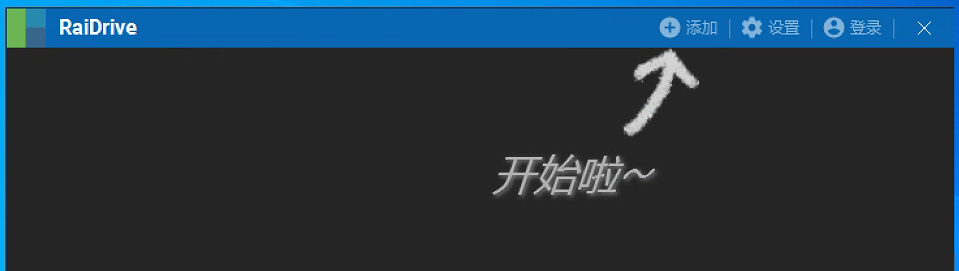
- Open RaiDrive and click the "Add" button
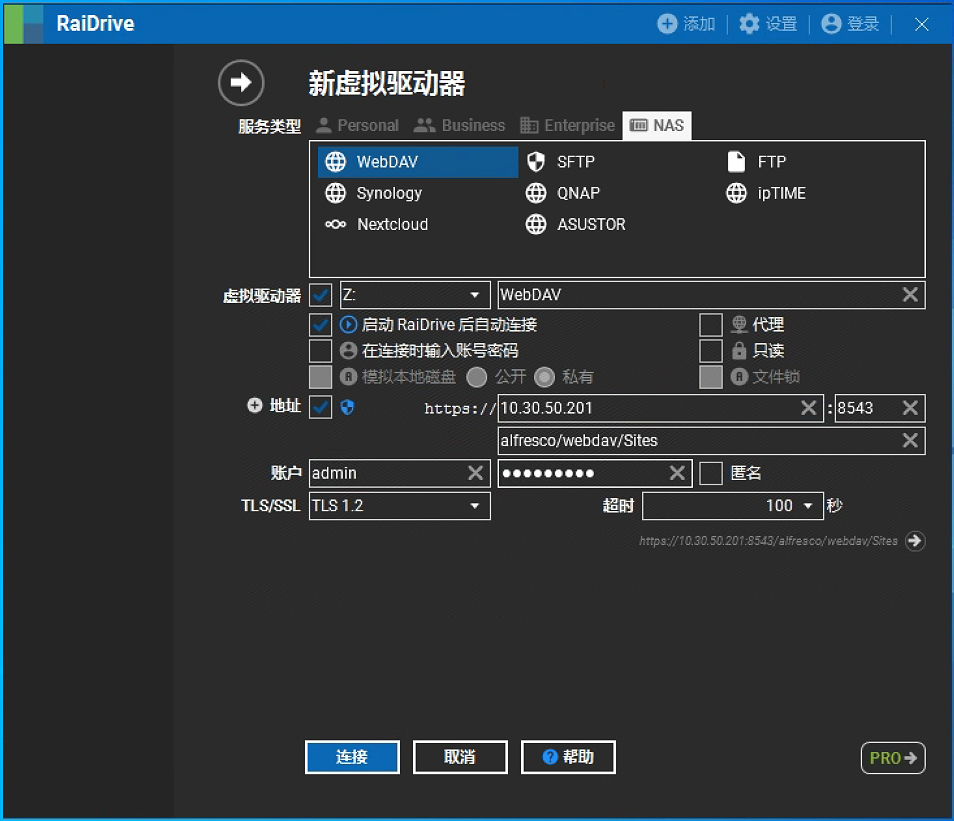
- Configure as shown below and click the "Connect" button
- Service type: NAS > WebDAV
- Address: Real domain name or IP address
- Port:
- If the system access address is http protocol: 8543
- If the system access address is https protocol: 443
- Path: alfresco/webdav/Sites
- Account: Enter system username and password
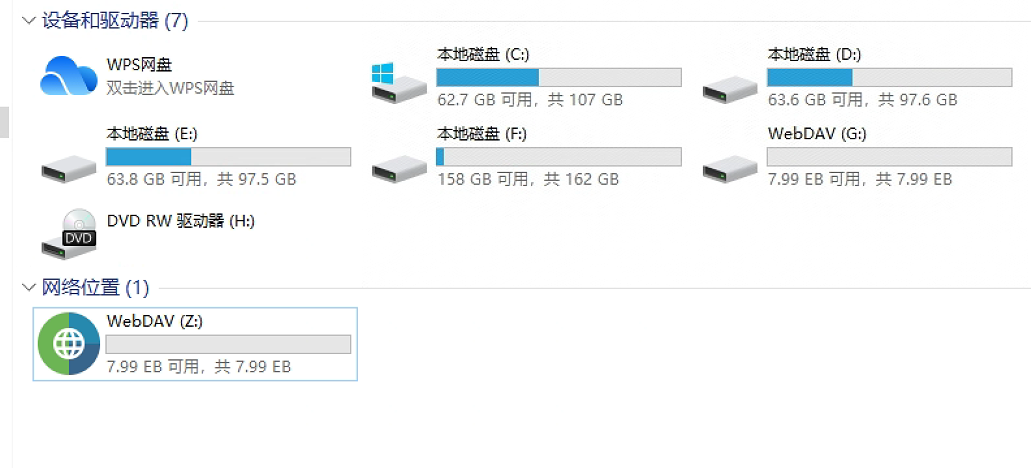
- After that, a new network mapped drive "WebDAV" will appear in "My Computer". Double-click to enter
Common Issues
1. Network problems during download and installation
Due to unstable foreign networks, network problems may occur during download and installation. Please try again later.
2. Unable to install required runtime environment
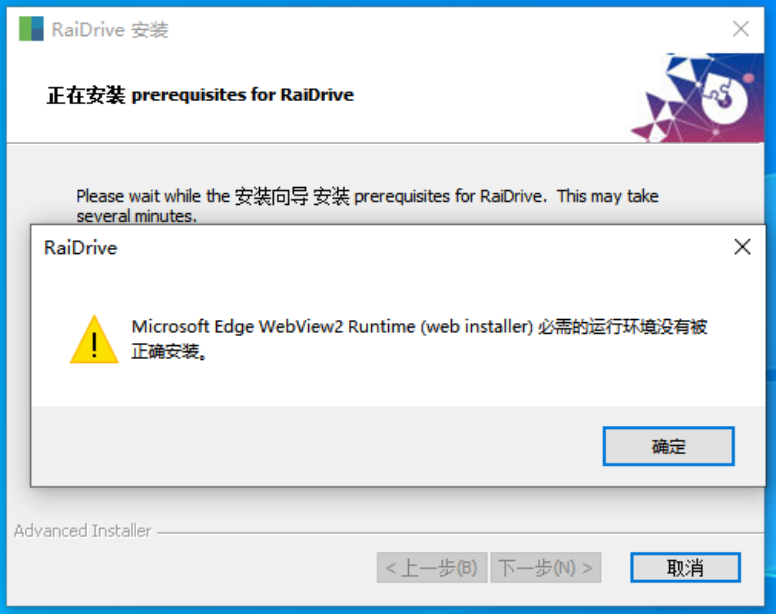
Required runtime environments for RaiDrive:
Description
For download/installation of each runtime environment, please refer to: RaiDrive Official Website
- .NET 6.0.6 (.NET Desktop Runtime) (Arm64 | x64 | x86)
- Microsoft Visual C++ 2015-2022 Redistributable (Arm64 | x64 | x86)
- Microsoft Edge WebView2 Runtime
Please make sure that there are no old versions of runtime environments installed on your computer. If there are, please uninstall them first, and then reinstall RaiDrive.
File Explorer Method
Attention
There are two problems with configuring network mapped drives in this way:
- WPS cannot open files
- File size limit of 50M, files over 50M cannot be opened
To solve the above problems, please use RaiDrive to configure network mapped drives. For specific methods, please refer to the next article.
By configuring a network mapped drive, the system allows you to directly open system folders on the local Windows system for operations.
Modify System Settings
- Create a new bat file on the local computer (idoc_explorer.bat) with the following content:
Description
Please pay attention to replacing the following content according to the actual situation:
doc.alfrescocn.com: Replace with the actual system domain name or IP addresshttps://doc.alfrescocn.com: Replace with access protocol + actual system domain name or IP address. The access protocol is http or https. Please check the actual system access address
@echo off

echo Adding to trusted sites...

reg add "HKCU\Software\Microsoft\Windows\CurrentVersion\Internet Settings\ZoneMap\Ranges\Range100" /v ":Range" /t REG_SZ /d doc.alfrescocn.com /f
reg add "HKCU\Software\Microsoft\Windows\CurrentVersion\Internet Settings\ZoneMap\Ranges\Range100" /v "https" /t REG_DWORD /d 2 /f

echo Modifying BasicAuthLevel...

reg delete HKEY_LOCAL_MACHINE\SYSTEM\CurrentControlSet\services\WebClient\Parameters /v BasicAuthLevel /f
reg add HKEY_LOCAL_MACHINE\SYSTEM\CurrentControlSet\services\WebClient\Parameters /v BasicAuthLevel /t REG_DWORD /d 2 /f

echo Office Setting...

reg add HKEY_CURRENT_USER\Software\Microsoft\Office\14.0\Common\Internet /v BasicAuthLevel /t REG_DWORD /d 2 /f
reg add HKEY_CURRENT_USER\Software\Microsoft\Office\15.0\Common\Internet /v BasicAuthLevel /t REG_DWORD /d 2 /f

echo Restarting WebClient service...

sc stop WebClient
sc config WebClient start= Auto
sc start WebClient

net use S: \\https://doc.alfrescocn.com/alfresco/webdav/ /savecred /persistent:yes

echo Restart your browsers to complete configurations.

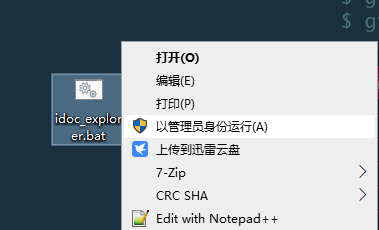
pause- Run the bat file
Right-click the bat file and select Run as Administrator. During the running process, you need to enter the system username and password.
Open Network Mapped Drive
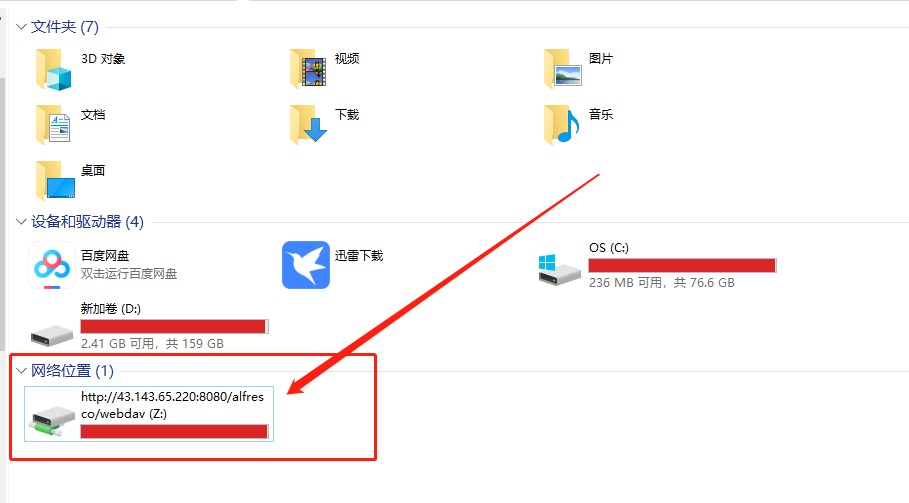
After executing the bat file, a new network location will appear in the local My Computer. Double-click to open it.
Through the network mapped drive, you can directly perform batch add/delete/query/modify operations on data in the system.
Attention
After opening the network mapped drive, you will see site ID folders. The access path for files in each site is: site ID/documentLibrary/
Note: Please do not change folders and files at the same level or parent level of the documentLibrary folder (including renaming, deleting, etc.).
Common Issues
1. No new network location appears in local My Computer after executing the patch file
Some computers have been found where no new network location appears in local My Computer after executing the patch file.
Solution:
Restart the computer. Generally, the problem can be solved by restarting the computer;
If the problem cannot be solved by restarting the computer, you need to create a network mapped drive manually. The steps are as follows:
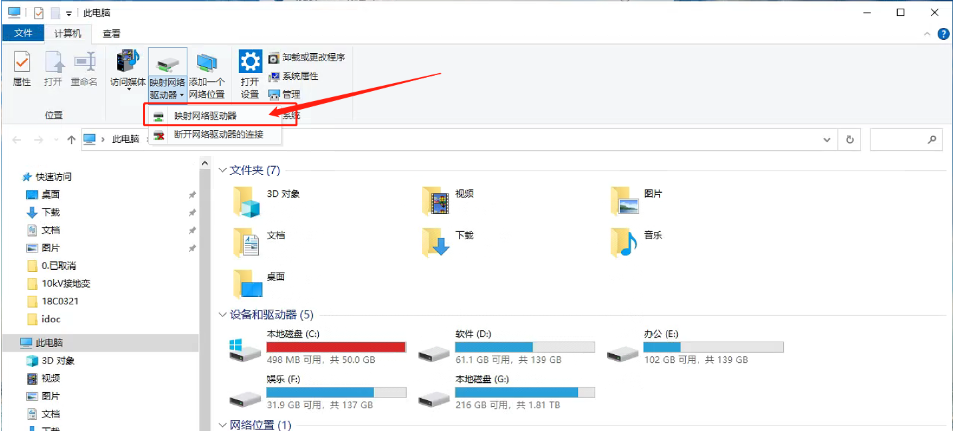
Open My Computer
Click "Map network drive" above
- Fill in network drive information
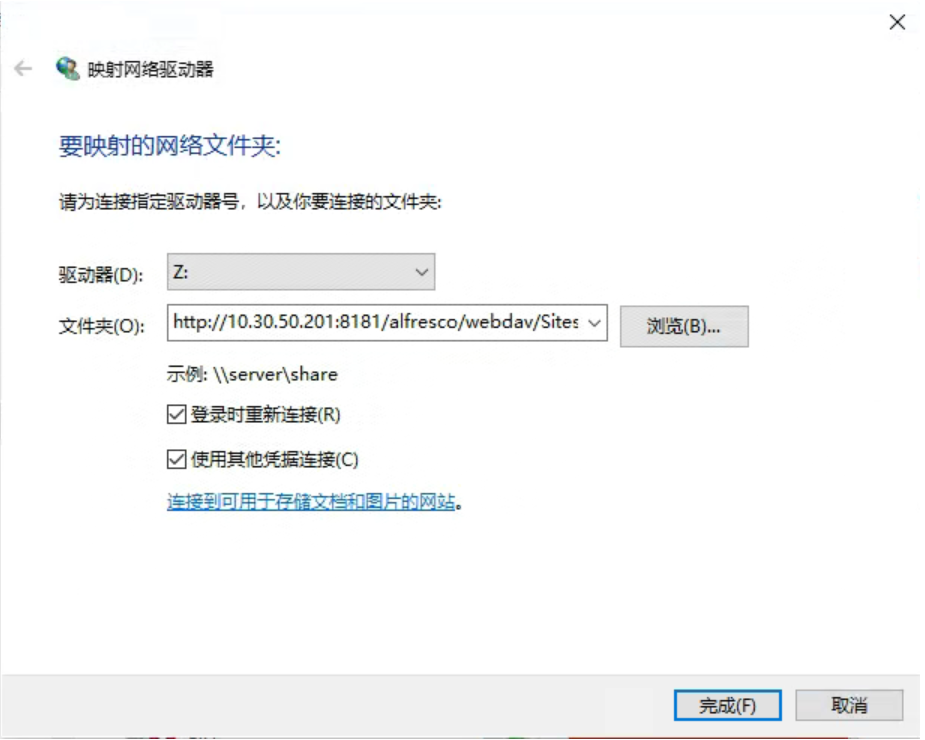
- Folder: http://10.30.50.201:8181/alfresco/webdav/Sites (Note: replace http://10.30.50.201:8181 with the actual system address)
- Reconnect at logon: Checked
- Connect using different credentials: Checked
- Fill in user account and password, check "Remember my credentials"
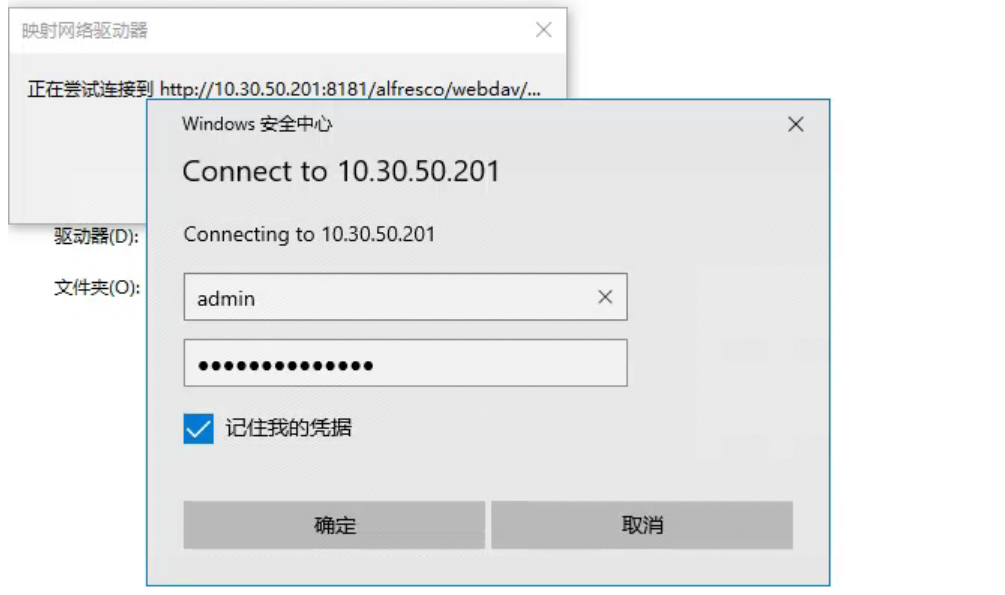
- A remote directory will pop up. Here is a list of all site ID folders. The specific data is under "documentLibrary" in the site ID folder
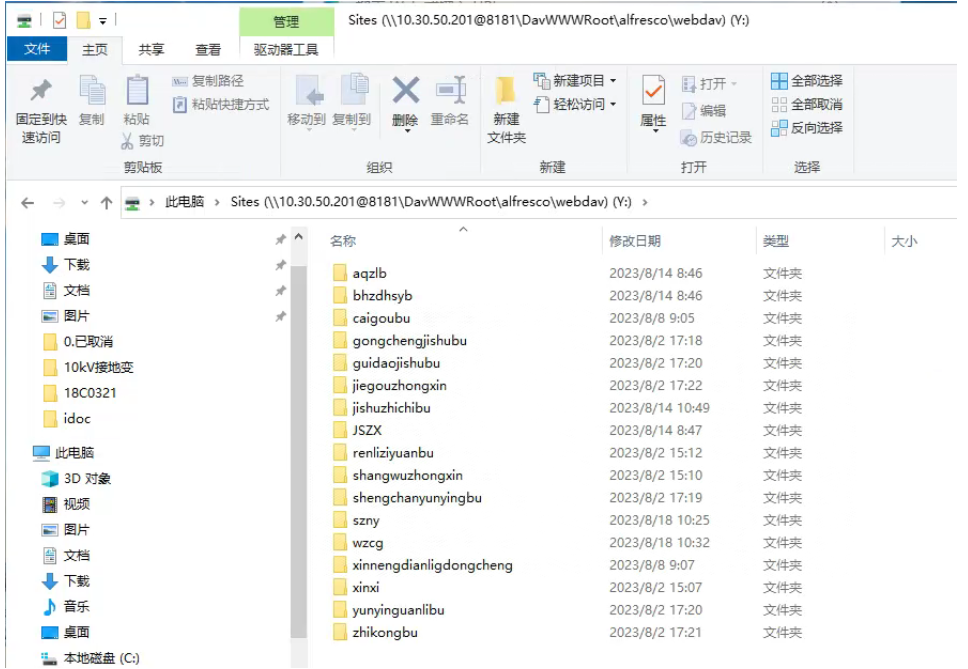
- At this time, check the local My Computer again to see the network mapped drive
2. After restarting the computer, double-clicking the mapped drive cannot connect successfully
It is known that in a domain environment, after executing the patch file, by default the domain user is used for login next time, causing login failure.
Solution:
- Right-click the network mapped drive and select "Disconnect";
- Refer to the solution of the previous problem to manually configure the mapped drive.
Attention
In the pop-up box for filling in the account and password in step 4, do not select the default domain account. Select to use another account, and then enter the system username and password.