Auto Sync Local Files
Difference between auto sync local files and network mapped drive methods
- Auto sync local files: Files are saved on both the local computer and the server, so it will occupy the hard disk space of the local computer. When there is no network or cannot connect to the server, you can still modify local files, and the system will automatically sync when connected to the network.
- Network mapped drive: Files are only saved on the server, so it will not occupy the hard disk space of the local computer. When there is no network or cannot connect to the server, access will not be possible.
Description
Achieve automatic synchronization between local folders and system folders by installing CmisSync
Principle: After installing and configuring CmisSync, CmisSync will download the folders specified to be synchronized in the system to the local computer and create a mapping relationship. Any modification to the folder by either party will be automatically synchronized to the other party.
CmisSync User Manual: https://doc.alfrescocn.com:10443/docs/cmissync/cmissync-1cdv8mqnkt49b
Attention
Since folders/files in the system need to be downloaded locally, the synchronized folder cannot be a folder at the top level to prevent insufficient local computer space after synchronization. It is generally recommended to synchronize only commonly used working directories.
In addition, if there are multiple directories that need to be synchronized, you can configure multiple synchronization settings.
Download CmisSync
Download URL: https://cmissync.com/download.php
Run CmisSync
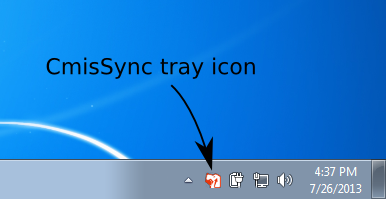
Run CmisSync, after a few welcome screens, it will start running as an icon in the tray.
Configure CmisSync
Right-click the taskbar icon and select "Add a remote folder"
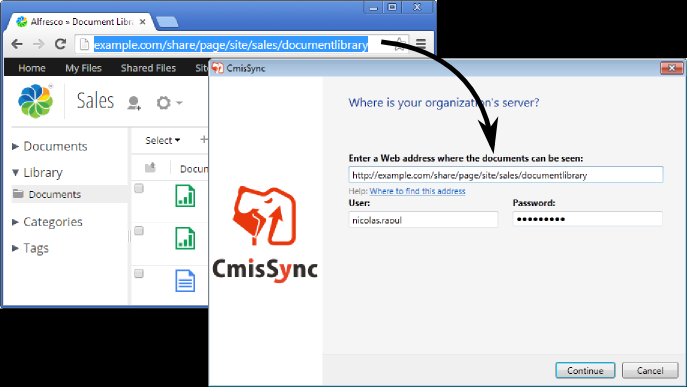
A dialog box appears. Copy and paste the server URL and fill in the system username and password.
Description
Generally, just enter the website domain name or IP, and the system will automatically guess the correct URL after clicking next
Server URL example: http://10.30.50.201:8181/
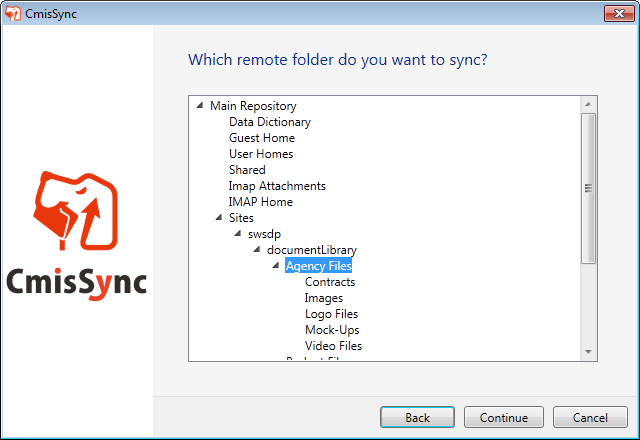
- The next screen shows the system folder structure. Select the folder you want to synchronize
Select Sites > {site id} > documentLibrary >
Attention
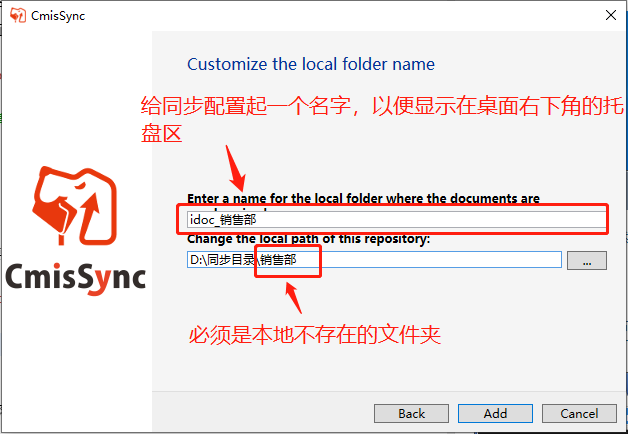
When specifying the local sync directory, it must be a folder that does not exist locally, otherwise the configuration may fail
- Complete
That's it!
Now, as long as there is a network connection, CmisSync will automatically sync documents between your local computer and the server.
CmisSync performs two-way synchronization, which means any changes on your local computer will be automatically synced to the server, and any changes made through the browser to access the system will also be automatically synced to your local computer.
Set Sync Interval
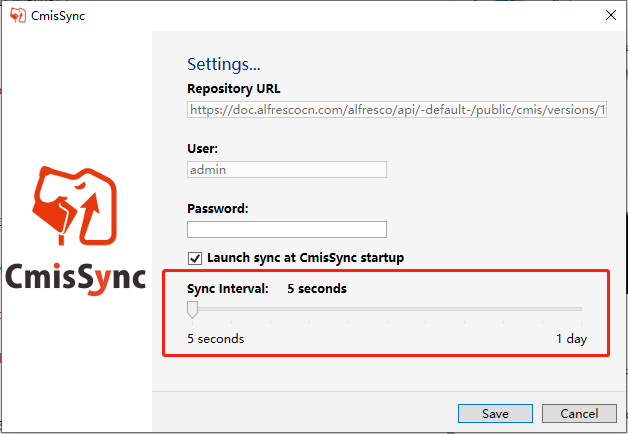
You can set the time frequency of synchronization.
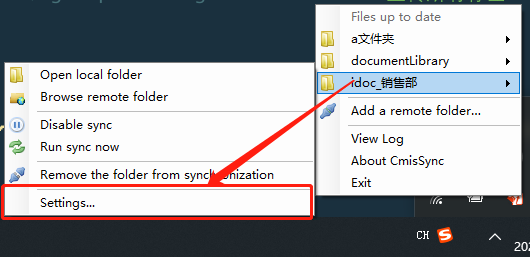
Right-click the CmisSync icon in the computer tray area, click Settings, and set the synchronization time interval in the pop-up box.